Friday, May 20, 2011

How to use Excel VLOOKUP

One of my most used formula in excel is the VLOOKUP formula. Basically what this formula does is that it returns a certain value from a table given a specific value.

A very simple example would be like this.
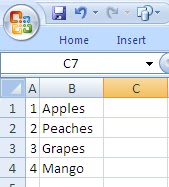
Assuming you have this table:


If you want to choose from the table given the number, then we can use VLOOKUP this way.

=Vlookup("1",A1:B4,2,False), this will result in "Apples"

In layman's terms, it means

=Vlookup("what to lookup for?", "what table?", "what column to get the results", "don't expect sorted data")

you can use a formula at the first argument to reference to another cell.

Now try it!

Happy Computing!


Quick Auto Sum in Excel

Want to use a keyboard shortcut to quickly sum up a column or row of data? Here's how:
  • Go to the end of the row or column (first cell with no values)
  • Press Alt-= (Alt and equal sign)
  • Auto sum is immediately inserted.
  • Done!
    Quick. Effective. Simple.

    Happy Computing!

    Quick Navigation in Excel (Control Key)

    If you want to go to the last data in a row or column, simply use this combination:

    Ctrl-Arrow key.

    Example, if you are at the top of the column and you want to go to the last data of that column (before any break), then use the Ctrl-Arrow Down. If you were at the bottom, then use Ctrl-Arrow up.


    Same rules for Ctrl-Left Arrow and Ctrl-Right Arrow.

    Now it's quicker to navigate highly populated sheets!

    Happy Computing!

    Highlight All Cells Referenced by a Formula

    Here's a quick shortcut to highlight all cells referenced by a formula. Go to the cell with the formula then hit

    Ctrl-[ (control and open square bracket).

    You will see all referenced cells highlighted. To move to the next selection (highlighted cell), simply press enter.

    Very useful for auditing worksheets!

    TIP: If you want to determine the OPPOSITE of it- that is formulas that reference the current cell  then simply use:

    Ctrl-] (control and close square bracket)

    Very useful for auditing sheets!

    Happy computing!

    Thursday, May 19, 2011

    Add Bullets in Excel

    Ever wondered how to add bullets in excel? It's so easy to do it in microsoft word. But how about excel?
    Here's how.

    On the selected cell, press Alt-0149. It will insert a bullet. Continue doing so for other cells or just copy paste the bullet and then add the text.


    • Alt-0149
    • Copy paste
    • Or just repeat the key combination.

      Works on all excel versions.

        Happy computing!

        Display all formulas in a sheet with a single key combination!

        Want to show all formulas within a sheet with just a sing key combination? Yes! With this combination, you can toggle this to display the results or the formula.

        Here it is Ctrl - ~ (it's ctrl key and the tilde, key before "1").

        That's it, you can now conveniently see and hide the formulas in your sheet.

        Works with any version of excel.

        Happy Computing!

        Tuesday, January 4, 2011

        Copy as Picture in Excel

        Excel2007:

        Want to copy texts and graphs as picture? Here's how.

        1. Click Paste -->As Picture--->Copy as picture.
        2. A dialog box will then pop-up, giving you a choice to copy as picture or bitmap and if copied as shown on screen or when printed.

        3. Choose between the appearance and the format
        4. Paste as usual.
        5. Done!

        Excel 2010:

        1. Go to home tab, copy, the select "copy as picture"

        2. A dialog box will then pop-up, giving you a choice to copy as picture or bitmap and if copied as shown on screen or when printed.

        3. Choose between the appearance and the format
        4. Paste as usual.
        5. Done!


        Excel 2003:

        There is a secret menu for this and this is how to get it.
        1. Press the shift button while clicking on the Edit menu. There, a new menu will come up - "Copy as picture".
        2. Click on this. The same popup dialog box will appear.
        3. Choose between the appearance button (as printed or as seen on screen) and format (as picture or bitmap).
        4. Paste as usual.
        5. Done!

        What for? Well, this will ensure that your graphs and your text will be consistent in its size and formatting when you paste it in the same sheet or on another office document such as word or PowerPoint.
        This could be very useful when doing reports and presentations.

        Happy computing!
        Related Posts Plugin for WordPress, Blogger...